分类
English 原创作品 技术

IBM FileNet Case Analyzer Cubes’ Deep Customizations, Part 4: Same month last year amount, monthly growth rate on a year-over-year basis

IBM FileNet Case Analyzer Cubes’ Deep Customizations

Part 4: Same month last year amount, monthly growth rate on a year-over-year basis

A Workaround for CA Time Dimension Restrictions

5/16/2012

IBM

Jie Zhang & Yiwei Song

Abstract: This is part 4 of series, focuses on the report same month last year amount and monthly growth rate on a year-over-year basis. This part analyzes XYZ Insurance’s requirement, outlines a restriction in CA Time dimension, and gives a workaround to overcome this restriction.

Zhang Jie works as a software engineer in IBM CDL. He has many years’ experiences of Java/J2EE development, test and test automation. Reach out to him atzhjie@cn.ibm.com

Yiwei Song, a member of CDL ECM CoE (Center of Excellence) in China, certified FileNet (4.0) developer. Has 5 years FileNet engagement experience, especially familiar with FileNet BPM. Acted as product expert and served several customer cases across insurance, banking and E&U industries. You may reach him athttp://linkedin.com/in/yiweisong


Link to the first part of the article:

Part 1 on Evis.ME | Part 1 on developerWorks

Link to the second part of this article:

Part 2 on Evis.MEPart 2 on developerWorks

Link to the third part of this article:

Part 3 on Evis.MEPart 3 on developerWorks

This part continues the topic of last one, focuses on same month last year amount and monthly growth on a year-over-year basis.


Requirement analysis

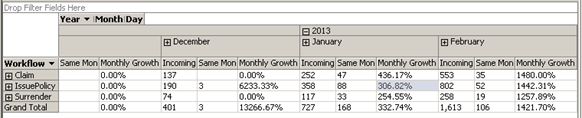
The same month last year amount and monthly growth on a year-over-year basis statistic is a typical report requirement and is important to company management. For example, there are 358 IssuePolicy businesses happened in Jan 2013 and 88 in Jan 2012, the growth on a year-over-year basis is (358 – 88) / 88 = 306.8%, which shows quite a promising rate.

Actually, in MDX or SSAS, there are many Time dimension optimized operations or functions. PARALLELPERIOD is a MDX function that can retrieve a member from a prior period in the same relative position as a specified member.

So the first trial is quite straightforward. Create a new Calculated Member Same Month Last Year Incoming with the MDX below:

Listing 1. Expected MDX locating Same Month Last Year

([Measure].[Incoming],PARALLELPERIOD([Time].[Time].[Year]))

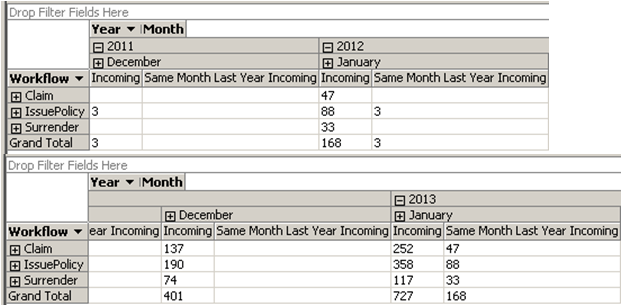
The Browser result is as follows.

Figure 1. Unexpected data found in Jan 2012 and Dec 2012
image

Comparing Jan 2013 and Jan 2012, the Same Month Last Year Incoming works well. But for Dec 2012 and Dec 2011, the values are missing, at least a “3-IssuePolicy” value. Actually, the test data doesn’t contains any of Jan 2011, so the “3-IssuePolicy” value in Jan 2012 is not right, seems it takes the value from Dec 2011 instead. Similarly, corresponding value in Dec 2012 is empty, which is incorrect.

This problem is also caused by CA’s bypassing non-activity months. Just as mentioned in last chapter, the members of Time dimension in CA cubes may not be consecutive. The PARALLELPERIOD function tries to locate the month with the same index in last year, however such index may not equal to the month number in CA’s case.

A workaround is needed.


Creating Calculated Member Same month last year amount in CA cubes

A Time dimension member at Month level can be presented as “[Time].[Time].[Month].&[2]&[2012]”, while the “&[2]&[2012]” suffix corresponds to composite key of the Month level. The idea is to get both current month key and last year key from current member, and then use those keys to find same month last year member.

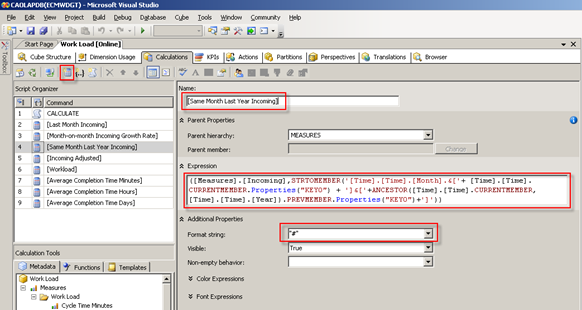
Create new Calculated Member in the same cube. The Name is [Same Month Last Year Incoming], the Format string is “#”, and the Expression is:

Listing 2. New MDX expression for Same Month Last Year Incoming

([Measures].[Incoming], STRTOMEMBER(‘[Time].[Time].[Month].&[‘ +

[Time].[Time].CURRENTMEMBER.Properties(“KEY0”) + ‘]&[‘ +

ANCESTOR([Time].[Time].CURRENTMEMBER,

[Time].[Time].[Year]).PREVMEMBER.Properties(“KEY0”) + ‘]’))

Figure 2. Create new calculated member Same Month Last Year Incoming
image

The ANCESTOR function goes up and gets the Year-level member containing current Month member.

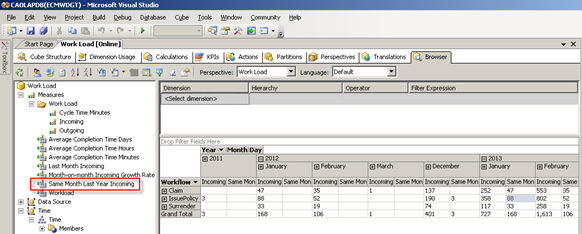
Preview in Browser tab. The problem of last section is resolved.

Figure 3. Preview the cube with new calculated member Same Month Last Year Incoming
image


Creating Calculated Member Monthly growth rate on year-over-year basis in CA cubes

There won’t be any difficulties creating this Calculated Member.

The Name is Monthly Growth Rate on Year-over-Year Basis, the Format string is “Percent”, and the Expression is:

Listing 3. MDX expression for Monthly Growth Rate on Year-over-Year Basis

IIF([Measures].[Same Month Last Year Incoming] > 0, ([Measures].[Incoming] –

[Measures].[Same Month Last Year Incoming]) / [Measures].[Same Month Last Year

Incoming], 0)

Figure 4. Create new calculated member Monthly Growth Rate on Year-over-Year Basis

image

Preview in Browser tab:

Figure 5. Preview the cube with calculated member Monthly Growth Rate on Year-over-Year Basis
image


Summary

Most products have restrictions, though those restrictions are reasonable for most cases in a product perspective. However customers won’t always accept those restrictions. A workaround is a way of maximizing products’ potential.

This part gives two possible options of implementing the report same month last year amount and monthly growth on a year-over-year basis. Both solutions leverage OLAP calculated member. The former solution is not applicable due to the CA Time dimension’s restrictions, while the later one can be considered as a good workaround.

Next part will be based on another different OLAP feature.


Appendix

Source: https://www.ibm.com/developerworks/mydeveloperworks/groups/service/html/communityview?communityUuid=e8206aad-10e2-4c49-b00c-fee572815374#fullpageWidgetId=Wf2c4e43b120c_4ac7_80ae_2695b8e6d46d&file=70af4375-b812-4972-9e13-2636f58a080d

File-pdf

Next part in series: IBM FileNet Case Analyzer Cubes’ Deep Customizations, Part 5: Extending Case Analyzer Measures using Named Calculation

分类
English 原创作品 技术

IBM FileNet Case Analyzer Cubes’ Deep Customizations, Part 3: Last month amount, month-on-month growth rate

IBM FileNet Case Analyzer Cubes’ Deep Customizations

Part 3: Last month amount, month-on-month growth rate

[Calculated Member in OLAP]

[May 9, 2012]

IBM

Shi Peng & Yiwei Song

Abstract: This is part 3 of the series, focuses on the report Last month amount and month-on-month growth rate. This part analyzes XYZ Insurance’s requirement, lists cons of Excel Pivot Table solution, introduces calculated member in OLAP and how to implement the calculated members required by the report.

Peng Shi previously worked as advisory software engineer in IBM China Software Development Lab Enterprise Content Management Center of Excellence. Currently, he works as the Knowledge Management Center senior manager in New Oriental Education and Technology Group in China. Reach out to her atshipeng3@xdf.cn.
Yiwei Song, a member of CDL ECM CoE (Center of Excellence) in China, certified FileNet (4.0) developer. Has 5 years FileNet engagement experience, especially familiar with FileNet BPM. Acted as product expert and served several customer cases across insurance, banking and E&U industries. You may reach him at http://linkedin.com/in/yiweisong.

Link to the first part of the article:

Part 1 on Evis.ME | Part 1 on developerWorks

Link to the second part of this article:

Part 2 on Evis.MEPart 2 on developerWorks

This part and next part explains how to create an important statistic for the reports: Growth rate comparing to last month and same month last year. This kind of statistic is applicable to most reports; let’s take process amount growth rate as example.


Requirement analysis

When creating a report of process (i.e. workflow instance) amount by process type, CA’s cube Work Load is the best choice. This cube includes dimensions Workflow and Time, measures Incoming, Outgoing, WL (i.e. Work Load) and etc.

Assume the customer is generating a report for Feb 2013, the Workflow dimension as rows, and the Incoming measure as column. Beyond this, customer needs an extra column showing Incoming amount of last month, Jan 2013, as well as a column showing the growth rate between Jan and Feb. So that customer may have the idea of their business growth in short term.

It’s definitely doable to use Excel’s power to achieve this.

  1. “Flatten” the Pivot Tables in Jan 2013 and Feb 2013 reports.
  2. Use Jan 2013 worksheet as base>copy Incoming column from Feb 2013 as another column, of course, a precondition in the Workflow rows Jan 2013 and Feb 2013 worksheets should be same.
  3. Create a new column with a function specified, and format as percentage.
Result is as follows:

Figure 1. Sample sheet of month-on-month growth in Excel

image

However, it’s not a good way to calculate in Excel because:

  • The Excel Pivot Table doesn’t allow complex manipulations; the“flatten” operation is a must.
  • “Flatten” and merging have to be done manually or by some script.
  • Workflow row correspondence cannot be guaranteed.
  • Most importantly, we expect to tune the data source rather than a presentation.

What if customer has Cognos BI or other OLAP clients as alternative presentations?

It is the best if the Work Load cube also provides measures Last Month Incoming and Month-on-month Incoming Growth Rate. The section below will try to adjust the Work Load cube by adding calculated members.


Calculated Member in OLAP

Calculated member is a customized measure or dimension member, defined by combining cube data, arithmetic operators, numbers, and functions. For example, we can create a calculated member named CNY (Chinese Yuan) that converts USD dollars to CNY by multiplying an existing USD measure by a conversion rate. CNY can then be displayed to end users in a separate row or column.

For a calculated member, its values are presentable but exist only in memory, which are not stored as cube data. (Referred to http://technet.microsoft.com/en-us/library/ms174952(SQL.90).aspx)


Creating Calculated Member last month amount in the cube

Here two calculated members will be created

  • Last Month Incoming and
  • Month-on-month Incoming Growth Rate

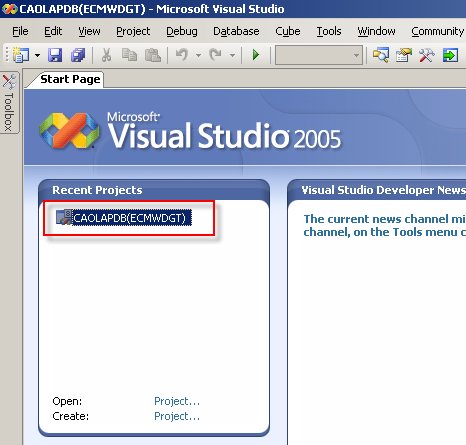
1. Again, bring up BI Studio, then connect to the same OLAP database or simply open recent project if you’ve created it in the last chapter.

Figure 2. Open existing solution in BI Studio

image

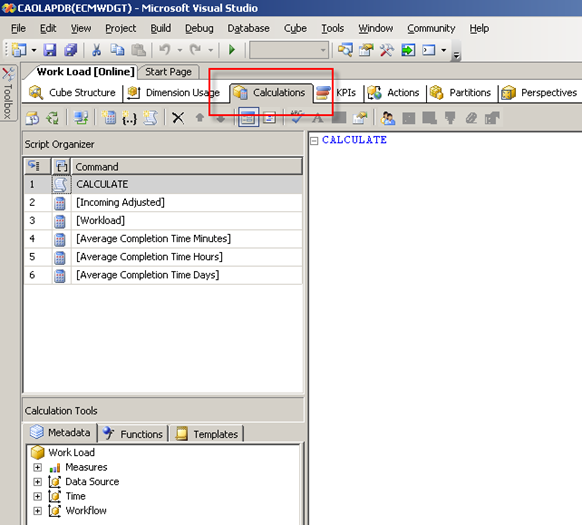
2. Open the Work Load cube>witch to Calculations tab.

Figure 3. Calculations tab of a cube

image

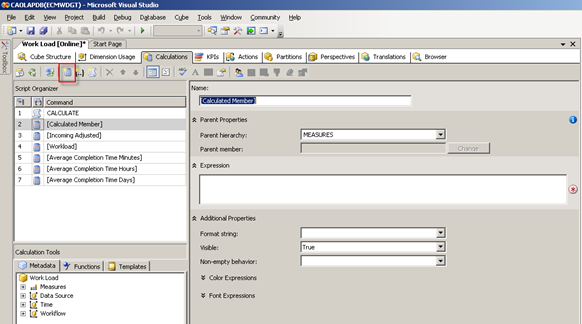
3. Click New Calculated Member button to create new Calculated Member.

Figure 4. Create new calculated member

image

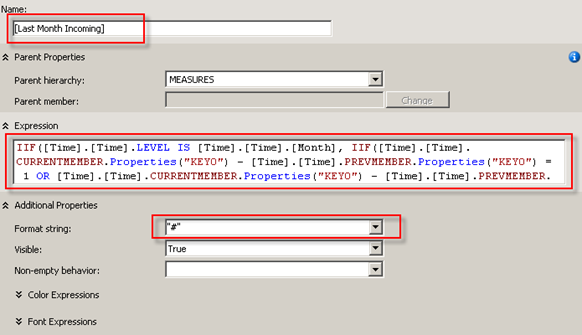
4. Specify Name with [Last Month Incoming], Format string with “#”, fill Expression field with the following MDX expression.

Figure 5. Specify necessary fields of the new calculated member Last Month Incoming

image

Here is the MDX expression:

Listing 1. MDX expression for calculated member Last Month Incoming

IIF([Time].[Time].LEVEL IS [Time].[Time].[Month],

IIF([Time].[Time].CURRENTMEMBER.Properties(“KEY0”) –

[Time].[Time].PREVMEMBER.Properties(“KEY0”) = 1 OR

[Time].[Time].CURRENTMEMBER.Properties(“KEY0”) –

[Time].[Time].PREVMEMBER.Properties(“KEY0”) = -11,

([Measures].[Incoming],[Time].[Time].PREVMEMBER),

“0”),

“N/A”)

The outer IIF function judges whether the level of current dimension member is the month. If not, the expression returns “N/A”. It doesn’t make any sense to calculate the Last Month Incoming at year or day level.

Typically, in a Time dimension, all the members should be consecutive, like Dec (2012), Jan (2013), Feb, Mar, Apr, etc., so that MDX PREMEMBER function will definitely return to the last month. However, there is a possible exception in CA cubes. CA only processes those times which PE has process related activities. That is to say, in some certain month, there is not a single user or systems operate the PE, CA will bypass this month, the member of this month won’t exist. For example, we may find there is Oct (2012), Nov (2012), Jan (2013), Feb (2013) members in Month level of Time hierarchy, Dec (2012) is missing, maybe all employees are on vacation at the same time, who knows? There should be a Dec member indicating there are 0 incoming processes, but due to underlying design, CA just bypasses it. As a result, PREMEMBER won’t be safe.

The inner IIF function in above MDX expression handles such exception. The condition argument compares current month member and previous month member, to see if the two are consecutive. A Properties(“KEY0”) property converts month string value to number value, like “Feb” to 2, “Dec” to 12, so that the “-” operator can be used. The later “-11” condition implies current month is Jan and previous month is Dec. The return value is either incoming measure of previous month or a “0”.

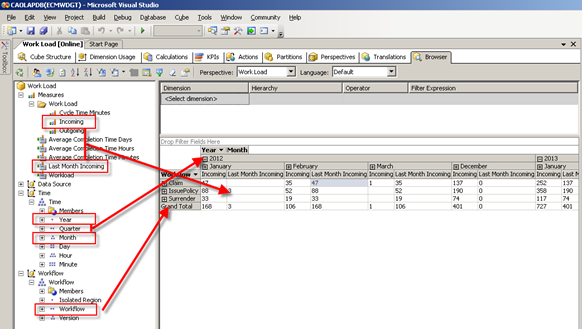
Save the change, and then switch to Browser tab. Add Year and Month of Time dimension as columns, Workflow of Workflow dimension as rows, and add both Incoming and Last Month Incoming as measures. You can see the value of Last Month Incoming of a month is exactly the same as Incoming of previous month, while if previous month is missing, the Last Month Incoming will be “0”.

Figure 6. Preview the cube with new calculated member

image

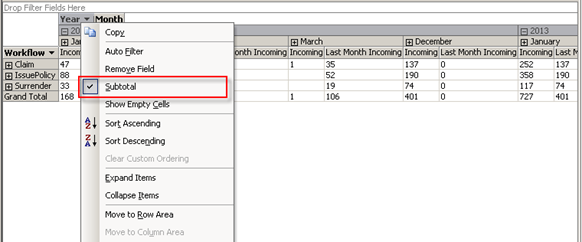
You may hide Subtotal columns in context menu if you find it disturbing.

Figure 7. Hide the subtotal column of a level

image

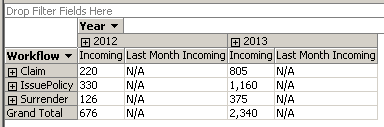
You also need to check using levels other than Month level in Time dimension. It shows “N/A” as expected to avoid confusing.

Figure 8. The “N/A” value works well

image


Creating Calculated Member month-on-month incoming growth rate

A month-on-month growth is calculated by: (Current – Last)/Last, which is easy to achieve by Calculated Member.

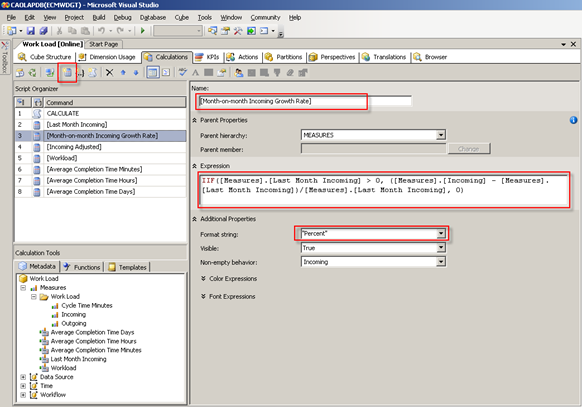
Create new Calculated Member in same Work Load cube, and then specify Name with [Month-on-month Incoming Growth Rate], Format string with “Percent”, Expression with the following MDX:

Figure 9. Create new calculated member Month-on-month Incoming Growth Rate

image

Listing 2. MDX expression for calculated member Month-on-month Incoming Growth Rate

IIF([Measure].[Last Month Incoming] > 0,

([Measure].[Incoming] – [Measure].[Last Month Incoming])/[Measure].[Last Month

Incoming],

0)

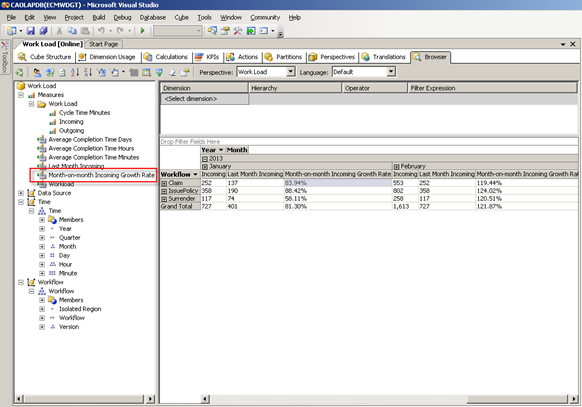
Append Month-on-month Incoming Growth Rate measure in Browser and check the result.

Figure 10. Preview the cube with new calculated member Month-on-month Incoming Growth Rate

image

Note: The MDX expression above is simplified. Developers should consider current level and “N/A” hints as last section mentioned, as well as other optimizations.


Summary

This part implements the last month amount and month-on-month growth rate reports, which shows a different method of extending CA dimensions and cubes. Calculated member is widely used when calculations are needed on top of existing measures.

In the next part 4, calculated member is still the core, however some restrictions of CA block us from a straightforward implementation. It’s worthwhile to outline these restrictions and corresponding workarounds.


Appendix

Source: https://www.ibm.com/developerworks/mydeveloperworks/groups/service/html/communityview?communityUuid=e8206aad-10e2-4c49-b00c-fee572815374#fullpageWidgetId=Wf2c4e43b120c_4ac7_80ae_2695b8e6d46d&file=ba70f3c8-d5c1-4bde-a837-45650481ca9a

File-pdf

Next part in series: IBM FileNet Case Analyzer Cubes’ Deep Customizations, Part 4: Same month last year amount, monthly growth rate on a year-overyear basis

分类
English 原创作品 技术

IBM FileNet Case Analyzer Cubes’ Deep Customizations, Part 2: Organization-user drill up or drill down

IBM FileNet Case Analyzer Cubes’ Deep Customizations

Part 2: Organization-user drill up or drill down

Utilize OLAP parent-child relationship to enhance CA user dimension

3/19/2012

IBM

Er Xing Zhao & Yiwei Song

This is part 2 of the series, continues to fulfill report requirements in part 1. Case Analyzer cubes contain a User dimension which includes all users participated in processes. Various reports can be created base on this. However if organizational information is needed in the reports, CA User dimension is not sufficient. This part leverages OLAP parent-child relationship and LDAP, shows how to impghs Aement an organization-user dimension that can drill up or drill down.

ErXing Zhao, a member of IBM CDL ECM CoE (Center of Excellence) in China. Has rich experience in Enterprise Content Management and Business Process Management since 2007 as a developer and architect. Reach out to him at zhaoerx@cn.ibm.com

Yiwei Song, a member of CDL ECM CoE (Center of Excellence) in China, certified FileNet (4.0) developer. Has 5 years FileNet engagement experience, especially familiar with FileNet BPM. Acted as product expert and served several customer cases across insurance, banking and E&U industries. You may reach him at http://linkedin.com/in/yiweisong.

Link to the first part of the article:

Part 1 on Evis.ME | Part 1 on developerWorks

This part of the series produces the report: Monthly ongoing/completed tasks by branch/sub-branch.


Requirement analysis

This report implies 3 factors: task amount, time period and branches list. The task amount measure and the time dimension is already in CA cubes. CA lacks of a branch dimension.

According to the organization chart, XYZ Insurance’s organizational units and employees form a hierarchical tree. A hierarchical tree best fits an OLAP dimension with drill up or drill down capabilities.

It’s not necessary to create a brand-new dimension, which would mean creating a full set of dimension table and foreign key relationships with fact tables. CA provides the User dimension as well as its underlying dimension table D_DMUser. Multiple fact tables like F_DMQueueLoad contain foreign key to it. It’s possible to append organization hierarchies to D_DMUser and then to derive a new dimension.


Parent-child relationship in OLAP

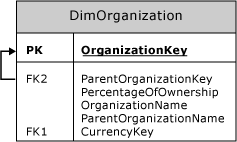
An OLAP dimension may contain parent-child hierarchies. According to Microsoft TechNet document (http://technet.microsoft.com/en-us/library/ms174846(SQL.90).aspx), a parent-child hierarchy is a hierarchy in a standard dimension that contains a parent attribute. A parent attribute describes a self-referencing relationship, or self-join, within a dimension main table.

Figure 1. A sample dimension table presenting parent-child hierarchy

image

(http://i.technet.microsoft.com/ms174846.13317b8b-3540-48fd-b194-e287f0bddc12(en-US,SQL.90).gif)


Extending CA user dimension table

The User dimension in CA OLAP only provides a flat view of users who participate in the processes. The dimension has to be extended by applying the parent-child hierarchy.

When customizing the OLAP model, it is best to modify the CA built-in tables/cubes as little as possible. So when needed, it’s better to create new tables or dimensions rather than modifying existing ones.

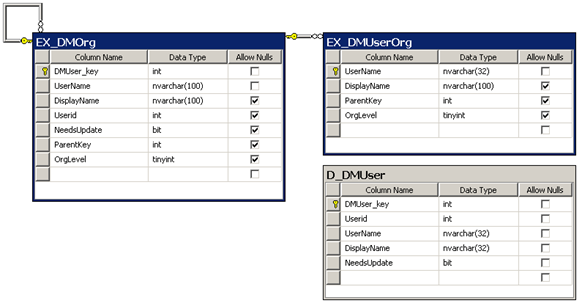
In this article, CA data are stored in CADB database in SQL Server 2005. Below are two tables to be created in the same database. (D_DMUser is a CA built-in table, it’s only listed here as reference.) EX_DMOrg will be used for storing organizational unit entries, the ParentKey column records parent-child relationship within the table; while EX_DMUserOrg stores the one-to-many relationship between organizational units and users. Note that DMUser_key is an auto-increase primary key in EX_DMOrg, and it has an increase step of -1.

Figure 2. New tables supporting parent-child hierarchy

image

Then a database view EX_DMUser is created consuming newly created tables EX_DMOrg, EX_DMUserOrg and the CA table D_DMUser. The SQL of the view is as follows:

Listing 1. SQL of database view EX_DMUser

SELECT DMUser_key, DisplayName, Userid, UserName, NeedsUpdate, ParentKey, OrgLevel

FROM (

SELECT DMUser.DMUser_key, UserOrg.DisplayName, DMUser.Userid, DMUser.UserName,

DMUser.NeedsUpdate, UserOrg.ParentKey, UserOrg.OrgLevel

FROM dbo.D_DMUser AS DMUser LEFT OUTER JOIN dbo.EX_DMUserOrg AS UserOrg ON

DMUser.UserName = UserOrg.UserName

UNION ALL SELECT DMUser_key, DisplayName, Userid, UserName, NeedsUpdate,

ParentKey, OrgLevel

FROM dbo.EX_DMOrg AS Org

)

WHERE (OrgLevel > 0)

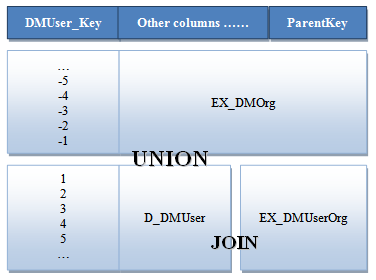
Looking into above SQL, it joins D_DMUser with EX_DMUserOrg on the UserName column. Then all EX_DMOrg and expended D_DMUser data are put together via a union. In this union operation, EX_DMOrg and D_DMUser both have the primary key DMUser_Key; however the values won’t have any overlap, since the former has negative integer value, while the later has positive integer value. By such design, organizational unit entries and user entries are all mixed up. The foreign key ParentKey of the view points to the primary key DMUser_Key of itself. As a result, the corresponding parent-child relationship is applicable to both organizational units and users. The diagram below shows relationships among the three tables inside the view.

Figure 3. Logical structure of the EX_DMUser view

image

This view EX_DMUser is the base of the new dimension.


Importing user-organization info from LDAP using UserOrgSync application

By now, newly created dimension tables are still empty.

Bring up the UserOrgSync project mentioned in part 1 of the series. Make sure the project is compiled successfully and configurations are adjusted accordingly. Now run the JUnit test case:

  • com.ibm.cn.ecm.ca.ProcessAnalyzerServiceTest.testImportOrgAndUser()

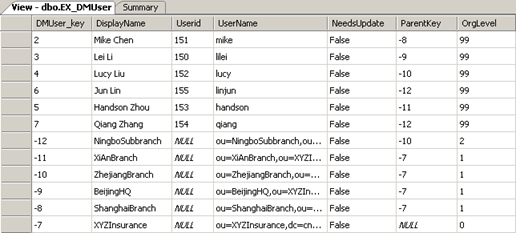
Once it is successfully executed, the EX_DMUser view is filled with the following data.

Figure 4. UserOrgSync application imports data into EX_DMUser view

image

The import is not a one-shot action; the importer will be run regularly in order to reflect to latest organizational structure of the company. It is recommended to wrap the importer by some system service, so that it can be run manually or periodically by some scheduler.


Updating CA cubes with the new user-org dimension

This section will create a new dimension based on database view above and apply it to the CA cubes.

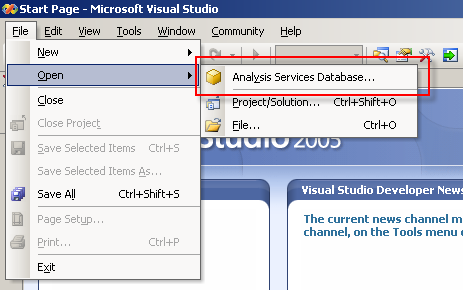
Bring up the Microsoft SQL Server Business Intelligence Development Studio (BI Studio for short), open the existing Analysis Services Database.

Figure 5. Open existing Analysis Service database in BI Studio

image

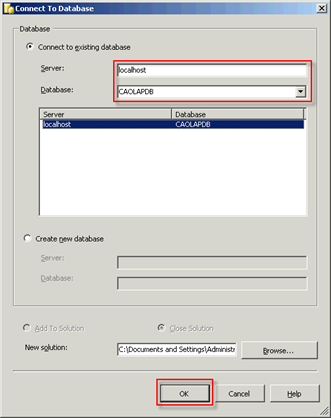
Choose the only database at localhost server.

Figure 6. Choose a Analysis Service database to open

image

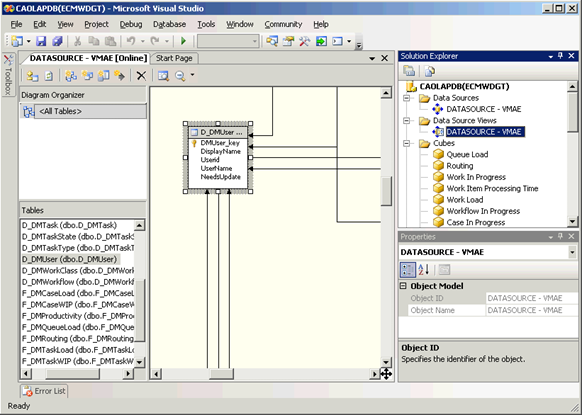
Open the Data Source View: VMAE.

Figure 7. The VMAE Data Source View

image

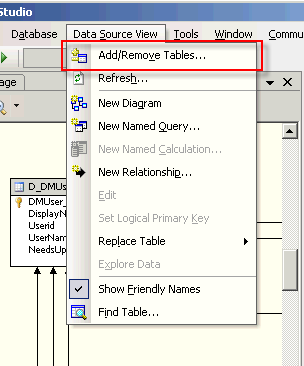
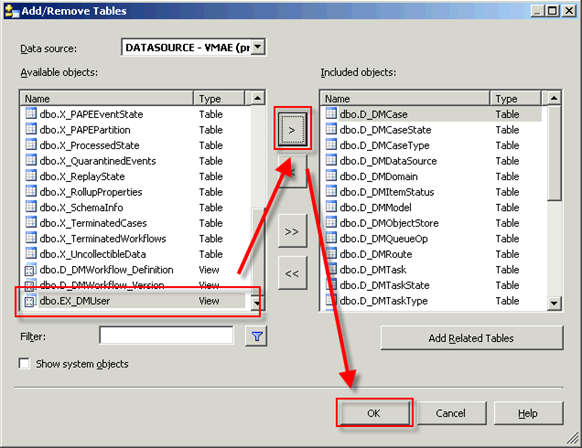
Add the EX_DMUser view from menu.

Figure 8. Add tables to data source view

image

Include the newly created EX_DMUser view and click OK.

Figure 9. Add newly created EX_DMUser to data source view

image

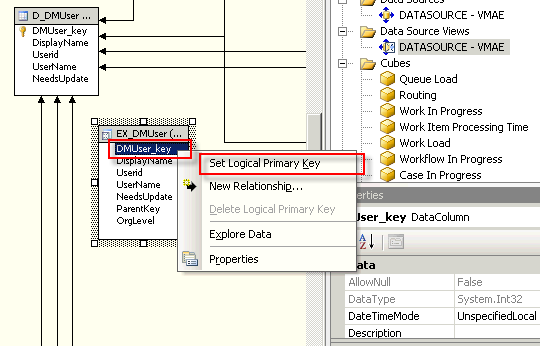
Find the EX_DMUser in the view, set the DMUser_key as Logical Primary Key.

Figure 10. Set Logical Primary Key of the view

image

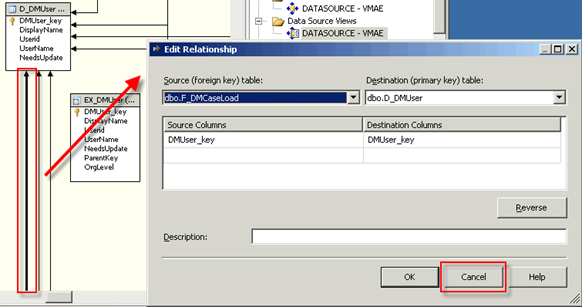
Check the relationships connected to original D_DMUser, double-click the line or right-click the line then choose Edit Relationship.

Figure 11. Check incoming relationships of D_DMUser

image

There’s no necessary to modify the existing relationships, just remember it.

You may find there are 7 incoming relationships targeting D_DMUser in CA OLAP (fewer in PA):

  • F_DMCaseLoad.DMUser_key -> D_DMUser.DMUser_key
  • F_DMCaseWIP.DMUser_key -> D_DMUser.DMUser_key
  • F_DMTaskWIP.DMUser_key -> D_DMUser.DMUser_key
  • F_DMRouting.DMUser_key -> D_DMUser.DMUser_key
  • F_DMWIP.DMUser_key -> D_DMUser.DMUser_key
  • F_DMQueueLoad.DMUser_key -> D_DMUser.DMUser_key
  • F_DMProductivity.DMUser_key -> D_DMUser.DMUser_key

Comparing this, create new relationships for EX_DMUser:

  • F_DMCaseLoad.DMUser_key -> EX_DMUser.DMUser_key
  • F_DMCaseWIP.DMUser_key -> EX_DMUser.DMUser_key
  • F_DMTaskWIP.DMUser_key -> EX_DMUser.DMUser_key
  • F_DMRouting.DMUser_key -> EX_DMUser.DMUser_key
  • F_DMWIP.DMUser_key -> EX_DMUser.DMUser_key
  • F_DMQueueLoad.DMUser_key -> EX_DMUser.DMUser_key
  • F_DMProductivity.DMUser_key -> EX_DMUser.DMUser_key
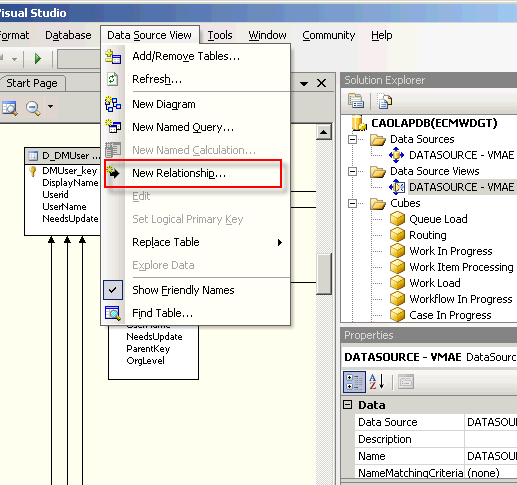
Figure 12. Create new relationship

image

As a result:

Figure 13. Create similar relationships for EX_DMUser

image

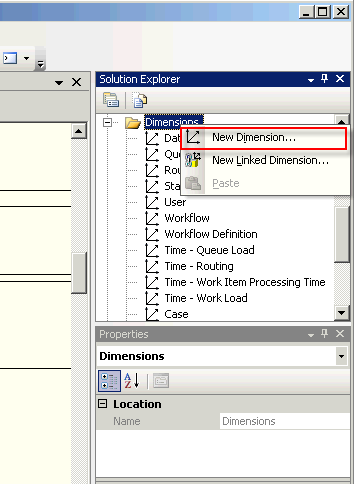
Save the changes. Now create new dimension:

Figure 14. Create new dimension

image

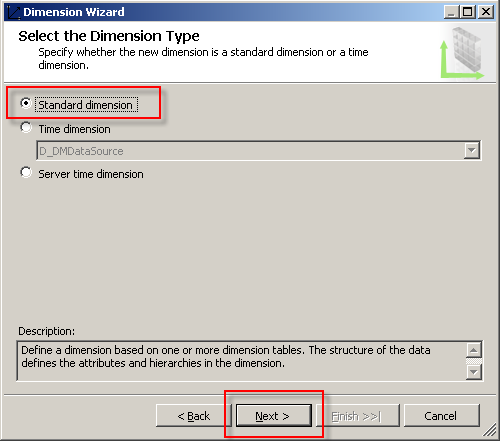
Keep the default values and click Next buttons in the pop-up Dimension Wizard dialog.

Figure 15. Choose standard dimension type

image

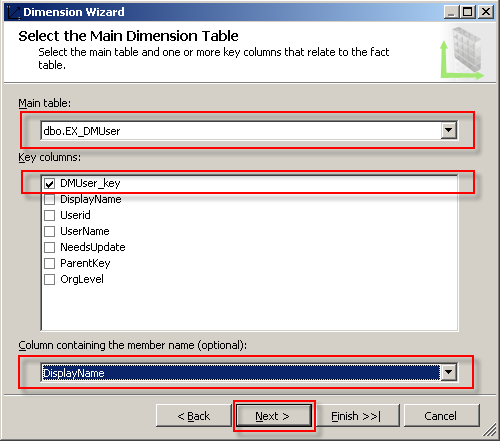
Until the step Select the Main Dimension Table, specify the view EX_DMUser, select DMUser_key as Key column, use DisplayName as member name column. Click Next.

Figure 16. Select the main dimension table

image

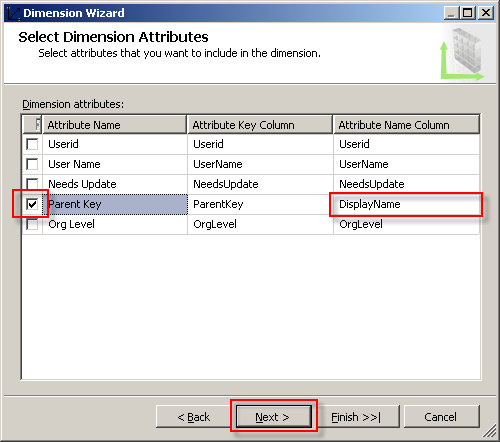
Include the Parent Key attribute in step Select Dimension Attributes.

Figure 17. Select dimension attributes

image

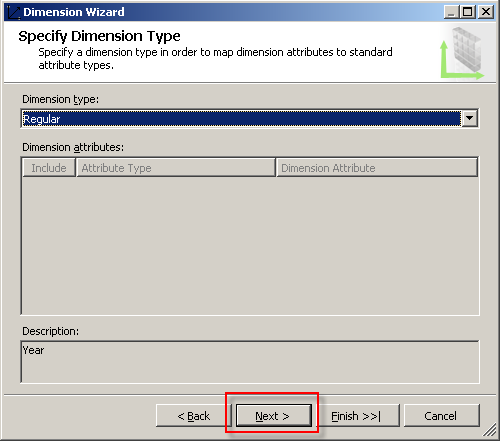
It’s a dimension of regular type.

Figure 18. Specify dimension type to regular

image

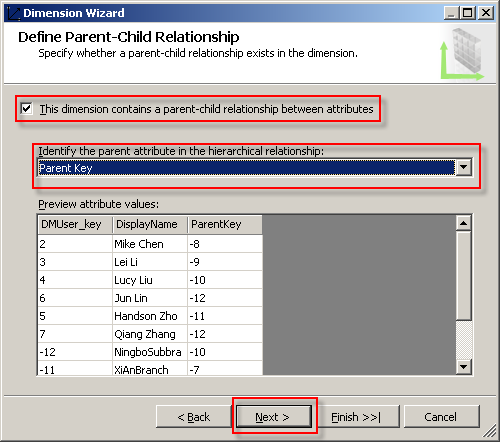
The wizard will find there may be Parent-Child Relationship in the dimension, select Parent Key here.

Figure 19. Define parent-child relationship

image

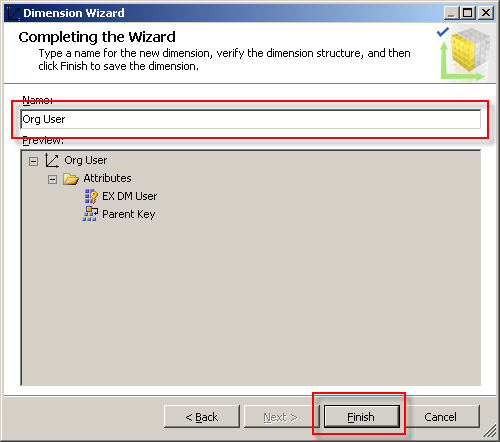
Name as Org User.

Figure 20. Name the dimension

image

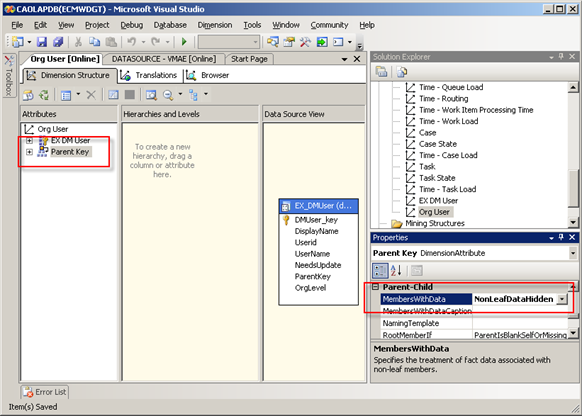
Open the just created Org User dimension, select Parent Key, and then change MembersWithData property to NonLeafDataHidden. Save the change.

Figure 21. Adjust dimension properties

image

Switch to Browser tab, click Process button.

Figure 22. Process the dimension

image

When processing finished, click the Reconnect or Refresh to preview the new dimension.

Figure 23. Preview the dimension

image

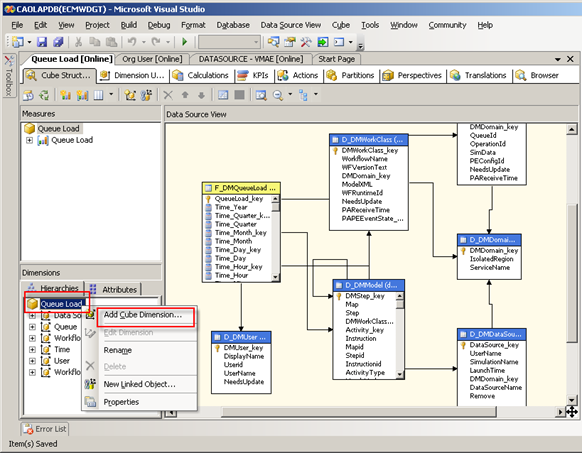
Now add the new dimension Org User into CA cube “Queue Load”.

Figure 24. Add the new dimension to a cube

image

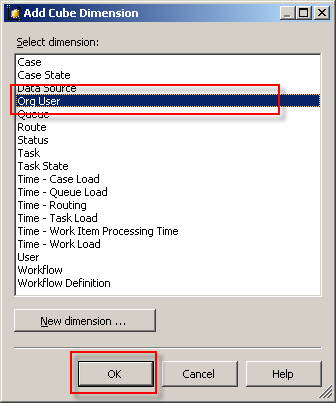
Figure 25. Choose the Org User dimension to add

image

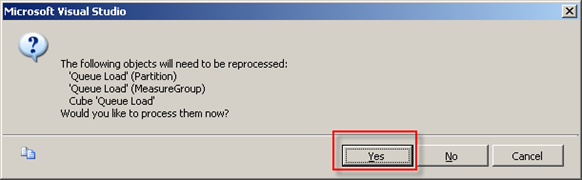
Save and let it process.

Figure 26. Save and process the cube

image

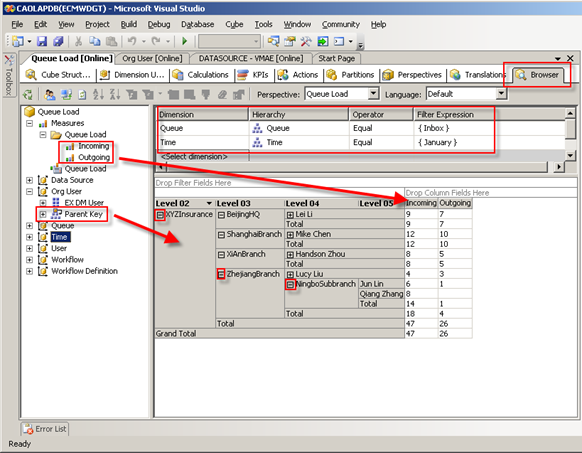
Finally check the updated cube in Browser tab, drag Parent Key of Org User to Row Field, add Incoming/Outgoing measures, and apply Queue/Time filters. Here is the result. You can see you may drill up or drill down freely in Org User dimension, and for higher level members, like branches/sub-branches, the measures are automatically summed.

Figure 27. Preview the cube with new dimension added

image

This updated cube can be either presented by Excel Pivot Table or Cognos BI.

As CA periodically extracts data and processes cubes, the cube data can be refreshed automatically. Above update won’t break the mechanism of CA itself.

Note that, in real use case, if an employee of company is transferred from one branch to another branch (or department), the LDAP data usually changes as well. The Java application that imports user/organization data should be re-invoked. After that, if you try to bring up old reports, you’ll find some branches’ Total changed. That’s because the Total value is calculated in OLAP’s runtime. Archive old reports to avoid this.


Summary

Above content not only gives a step by step description of how to implement an organization-user dimension that can drill up or drill down, but also explains the underlying principle, parent-child relationship in OLAP.

The next part 3 continues to introduce how to implement last month amount and month-on-month growth rate.


Appendix

Source: https://www.ibm.com/developerworks/mydeveloperworks/groups/service/html/communityview?communityUuid=e8206aad-10e2-4c49-b00c-fee572815374#fullpageWidgetId=Wf2c4e43b120c_4ac7_80ae_2695b8e6d46d&file=94a6ac16-3057-4e7c-8a1f-794f9a926b1a

File-pdf

Next part in series: IBM FileNet Case Analyzer Cubes’ Deep Customizations, Part 3: Last month amount, monthon-month growth rate